[Practical] How does the electronic invoice service platform issue a unified invoice for motor vehicle sales? One article is done ~
The city has recently launched the electronic invoice service platform for motor vehicles and used cars. Taking motor vehicles as an example, when the pilot motor vehicle enterprises retail motor vehicles abroad, they can issue a unified invoice for motor vehicle sales on the electronic invoice service platform for their use in vehicle transfer registration. The sample tickets are as follows:
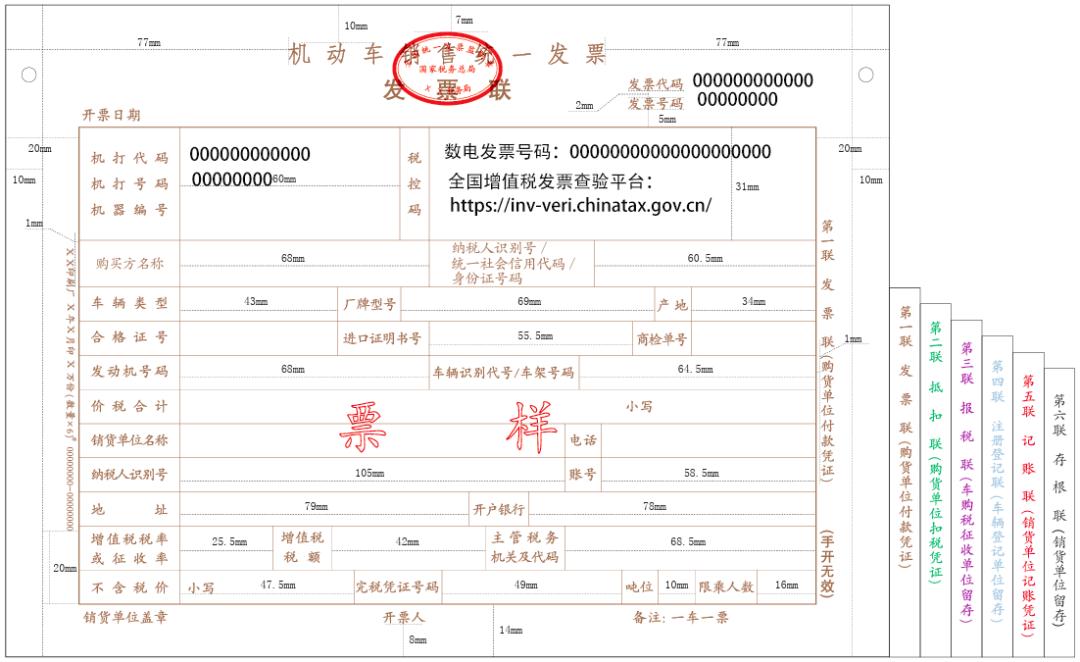
Let’s take a look at how to operate it!
01 operation process:
Preconditions: Taxpayers should be classified as one of domestic motor vehicle manufacturers, offices or general authorized agencies of imported motor vehicle manufacturers in China, other traders engaged in motor vehicle import, authorized motor vehicle dealers and other motor vehicle traders.
(1) taxpayers log in to the electronic tax bureau and select [I want to do tax]-[Billing business] in turn, as shown in Figure 1.
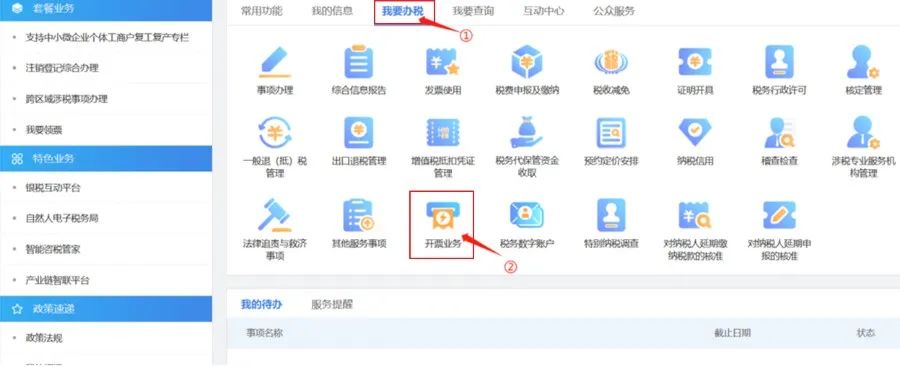
figure 1
(2) After entering the billing business interface, click the blue-ink invoice issuing function, as shown in Figure 2.
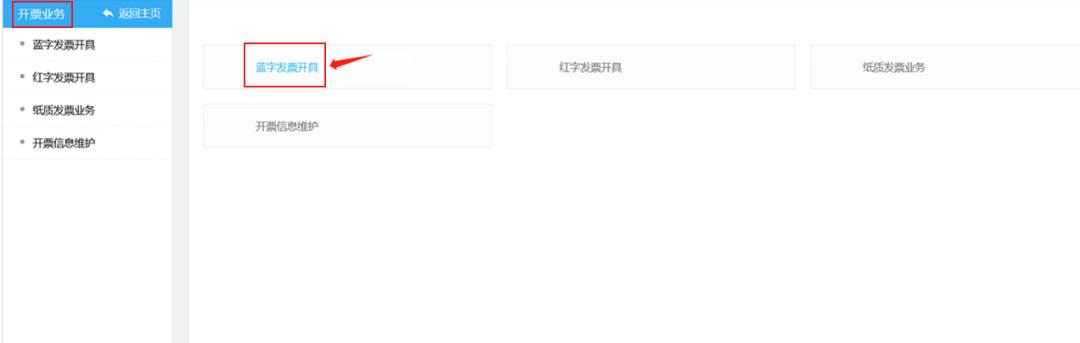
Figure 2
(3) Enter the secondary function interface of blue-ink invoice issuance, where data overview, invoice filling and recent invoicing are displayed, and click Invoice Now in invoice filling, as shown in Figure 3.
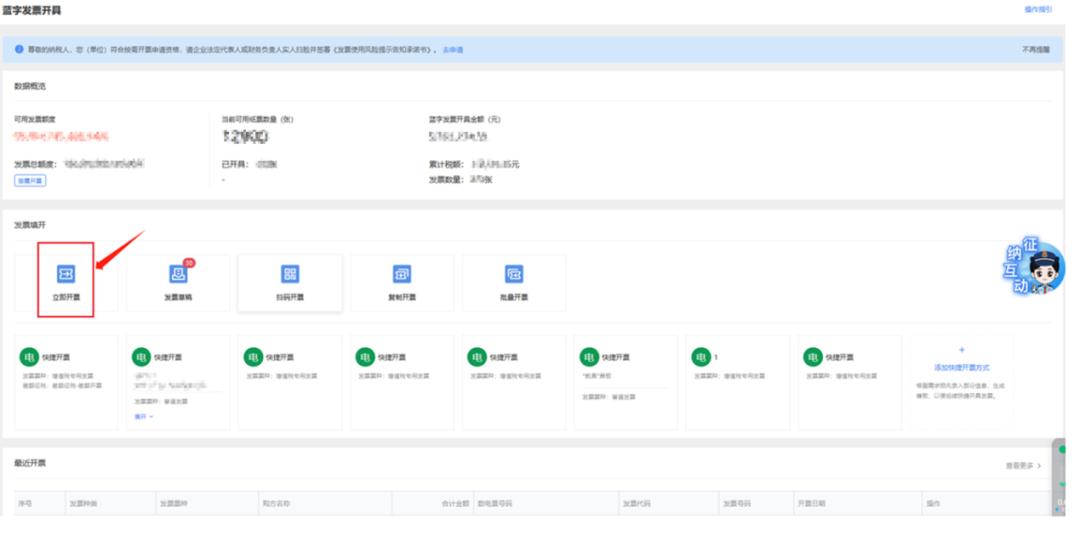
Figure 3
(4) The window of immediate invoicing pops up, and electronic invoice is selected by default, as shown in Figure 4.
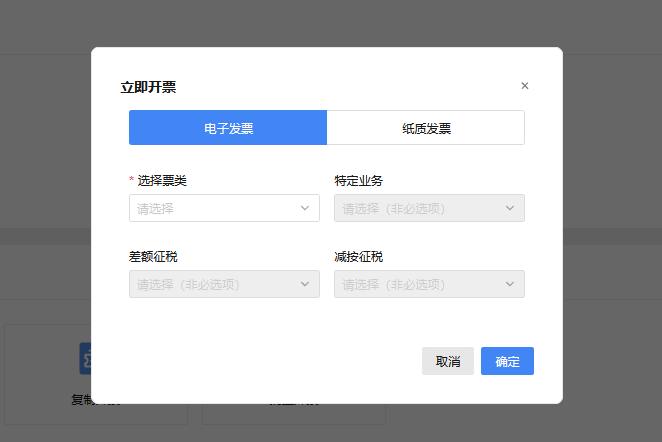
Figure 4
⑤ First, change the ticket type, select Paper Invoice, then click the drop-down list in Select Ticket Type, select Uniform Invoice for Motor Vehicle Sales, and the secondary menu of Uniform Invoice for Motor Vehicle Sales will pop up, and select Uniform Invoice for Motor Vehicle Sales (six copies with no amount limit), as shown in Figure 5; After selecting the ticket type and ticket type, click OK, as shown in Figure 6.
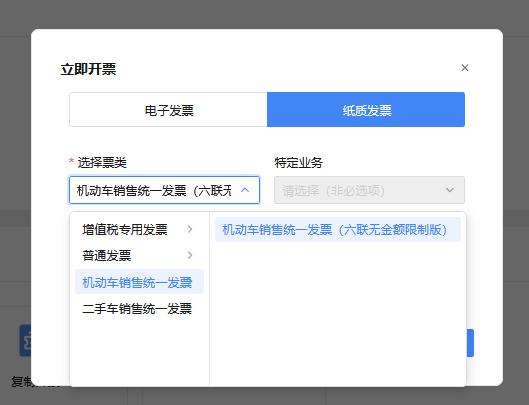
Figure 5
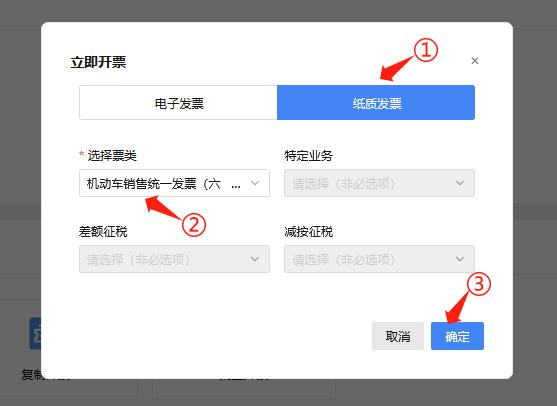
Figure 6
⑥ Enter the invoice form view by default, and the seller information will be automatically filled in with the registered seller information, as shown in Figure 7 and Figure 8.
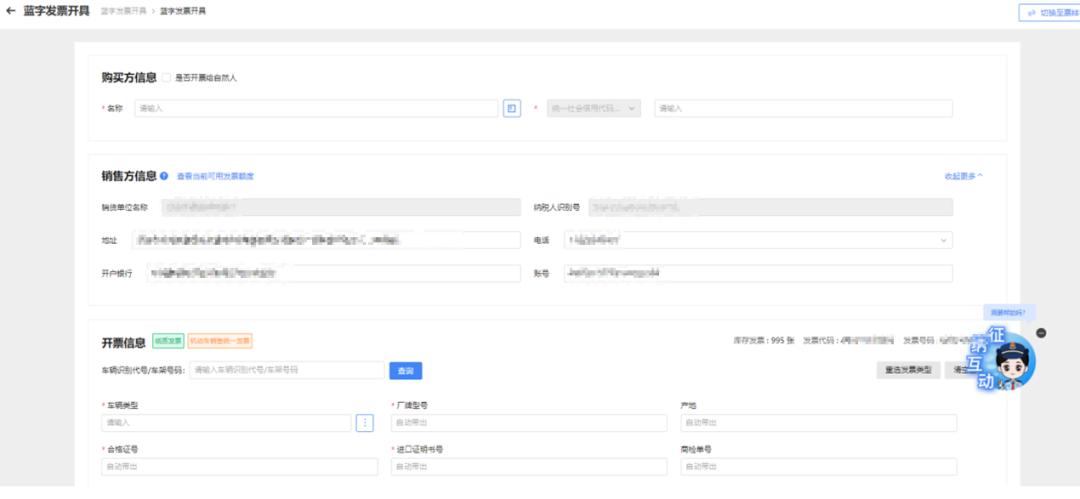
Figure 7
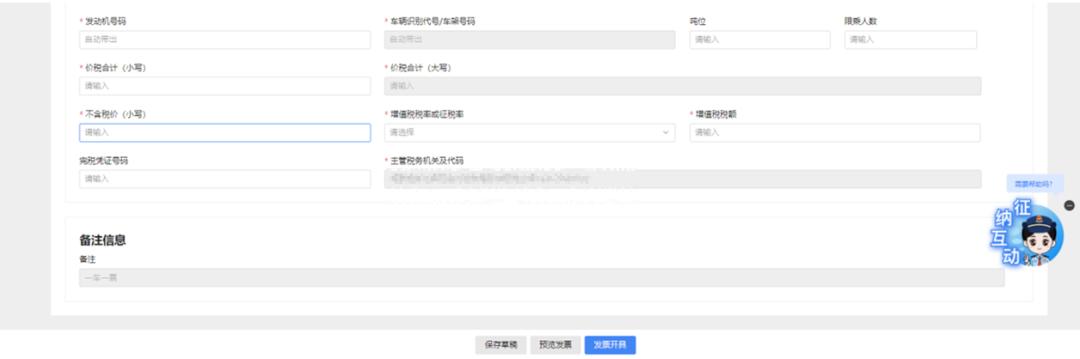
Figure 8
⑦ The taxpayer should fill in the buyer’s information, seller’s information and billing information correctly and truthfully according to the actual situation. If the buyer is a natural person, you need to check the "Invoice to natural person" check box, and the system will automatically pop up a prompt, click "I know", and fill in the natural person’s name and ID number according to the actual business, as shown in Figure 9; When the buyer is not a natural person, the check box "Invoice to natural person" cannot be checked, and the buyer information should be filled in according to the actual situation, as shown in Figure 10.
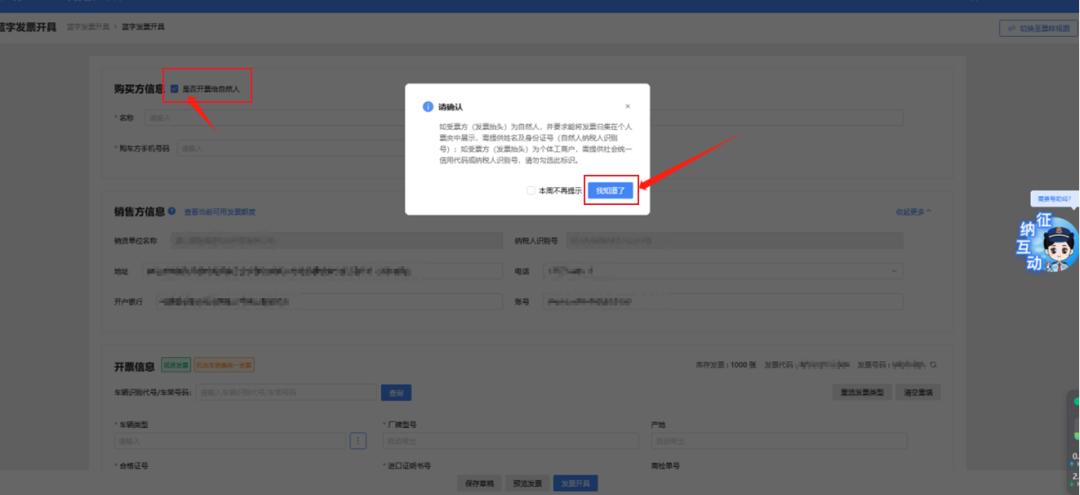
Figure 9
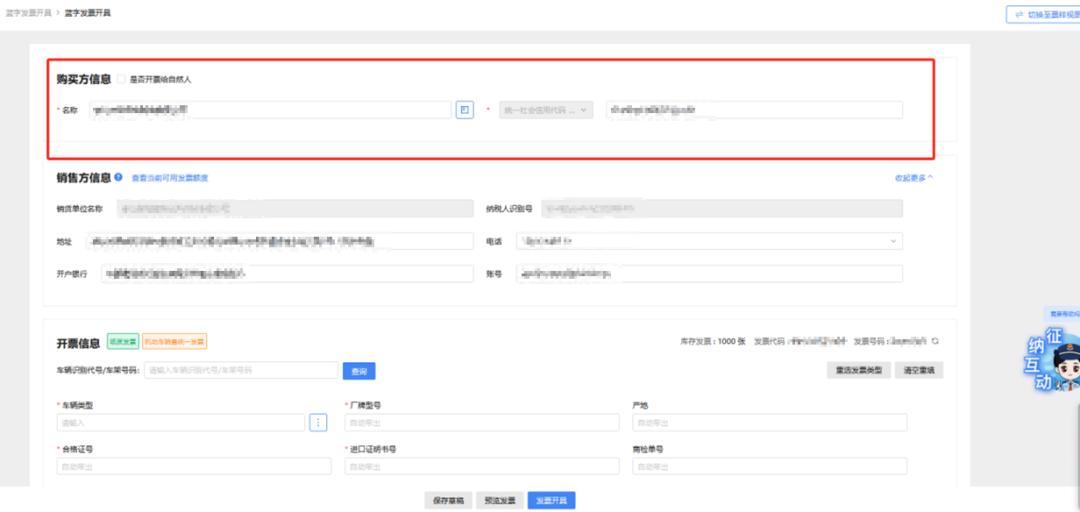
Figure 10
⑧ Enter the vehicle identification code/frame number to be issued in the billing information column "Vehicle identification code/frame number", and click Query to automatically bring the corresponding contents on the vehicle certificate, such as the model, origin, certificate number and import certificate number, as shown in Figure 11; Information that is not automatically brought out can be filled in according to the actual situation, as shown in Figure 12.
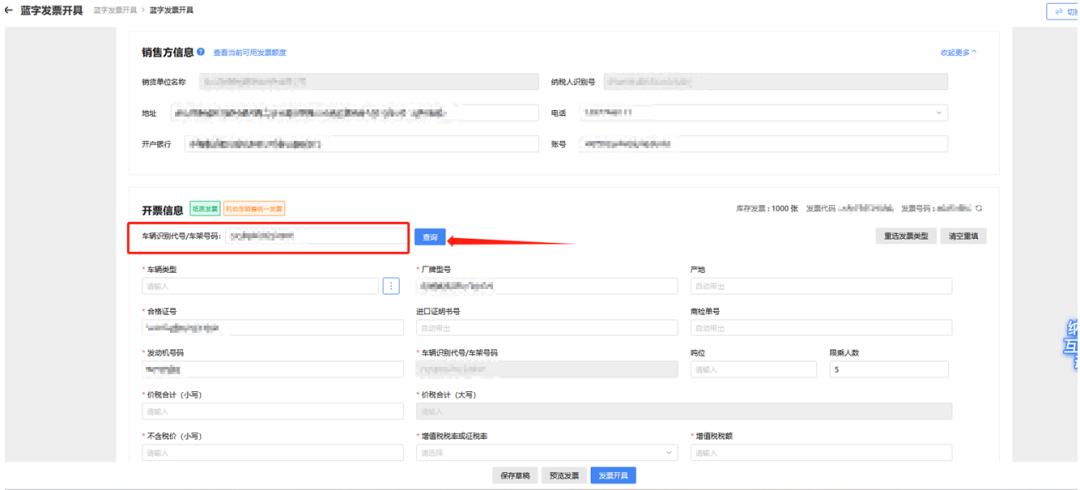
Figure 11
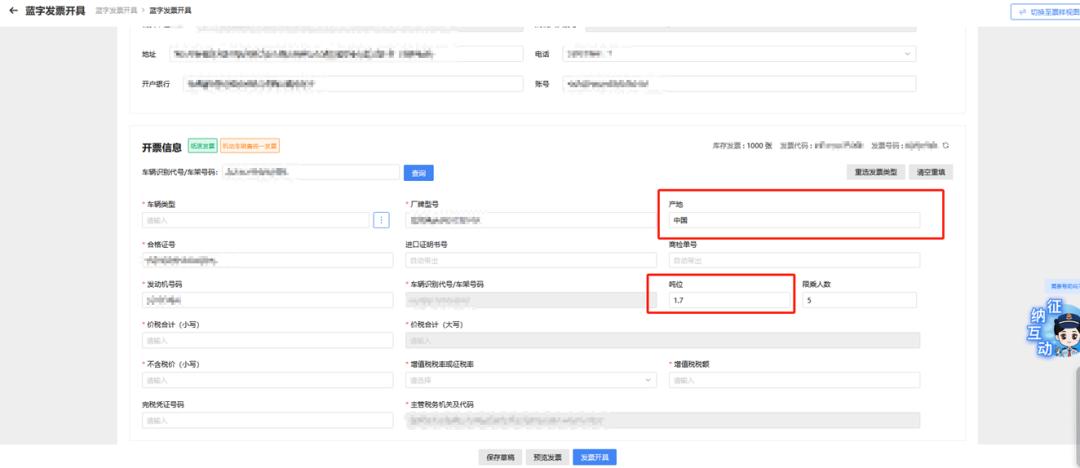
Figure 12
Pet-name ruby Taxpayer manually supplements information such as vehicle type, total price and tax, VAT rate or collection rate according to the actual situation, as shown in Figure 13.
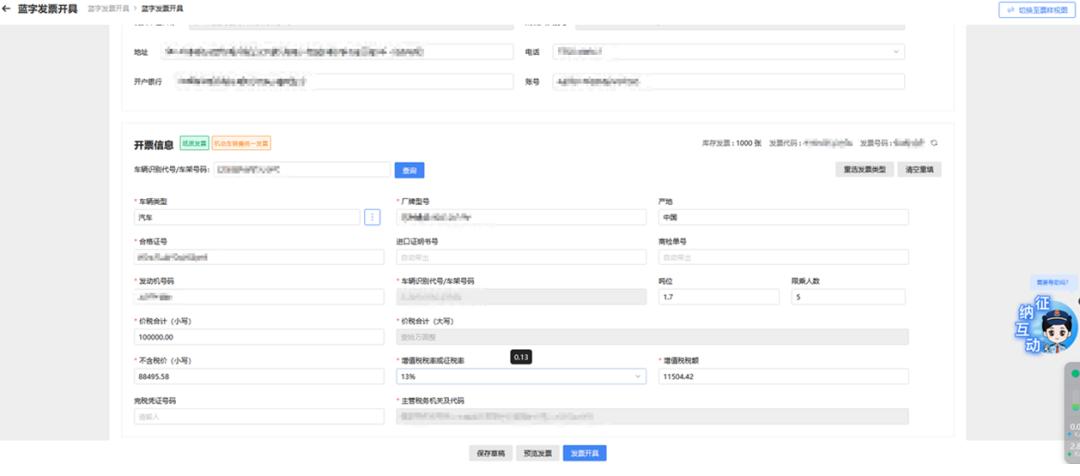
Figure 13
⑩ Click "Invoice Issuing", and the system will automatically check it. If the invoice is correct, it will be successfully issued and automatically delivered to the other party’s digital account, as shown in Figure 14 and Figure 15. It should be noted that if the other party is a natural person, the system will automatically deliver it to the buyer’s personal wallet after the "Invoice to Natural Person" checkbox is checked and the correct ID number is filled in.
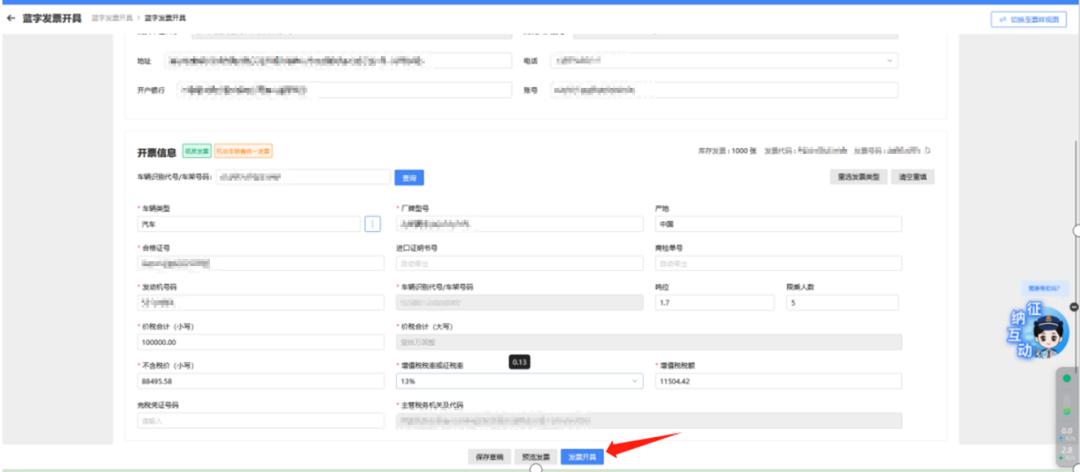
Figure 14
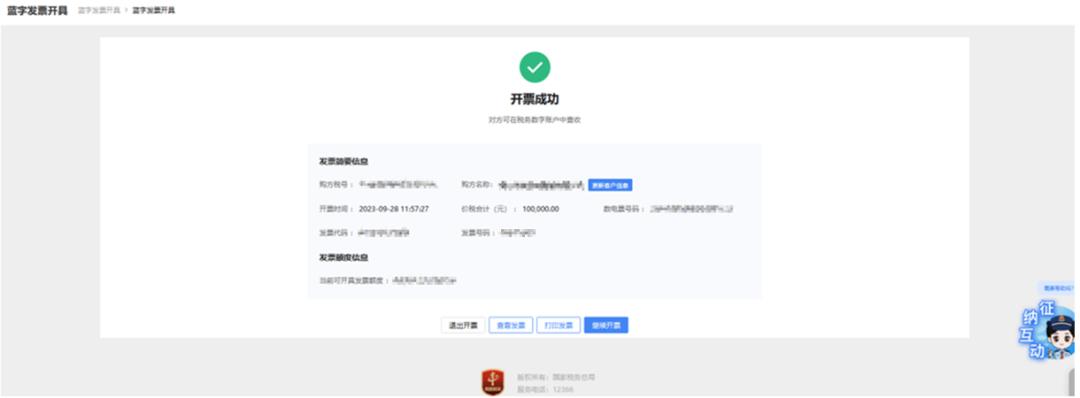
Figure 15
02 Precautions:
Vehicle types can only be compiled by motor vehicle manufacturers, and some fields in the billing information will be automatically filled in according to the vehicle certificate information after querying the vehicle identification code frame number, without manual filling in. "Remarks Information" defaults to "one car, one vote" and cannot be changed.
It is suggested that taxpayers use Firefox to log in to the electronic tax bureau. When the taxpayer uses the printing function on the electronic ticket platform for the first time, the webpage will prompt that the printing program needs to be downloaded, and the taxpayer needs to download the printing control of V1.5 and above and complete the installation of the program. At the same time, refer to the [Printing Help] document in the webpage prompt, and select the corresponding configuration link according to the installed version of the printing control to configure the printer.
Contributed by Fang Xinpei
Keep sliding to see the next one.
[Practical] How does the electronic invoice service platform issue a unified invoice for motor vehicle sales? One article is done ~ Shanghai taxation touch to read the original text

Shanghai tax praise sharing is reading, writing a message and sliding up to see the next one.
Original title: "How to issue a unified invoice for motor vehicle sales on the [practical] electronic invoice service platform? An article is done ~ "
Read the original text